If you want Gemini AI photo prompts that actually work for your everyday projects, you’re in the right place. These templates are optimized for Nano Banana Pro, Google’s most advanced AI image generator.
We’ve spent the last few weeks using Google’s Gemini AI (Often called Nano Banana Pro) on real client work. That means portrait shoots, product packaging, marketing dashboards, and technical docs. The big surprise? When you use it like a serious tool instead of a fun experiment, the results get good enough for clients.
This guide is built to do two things:
- A complete library of 30+ copy-paste Gemini AI (Nano Banana) photo prompts across multiple categories
- Share production-ready Nano Banana Pro workflows you can plug into client work, documentation, dashboards, and marketing.
What Is Nano Banana Pro in Gemini?
In Gemini’s image tools, you’ll usually see two options:
- Nano Banana – the Fast model
- Nano Banana Pro – the Thinking model, built on Gemini 3 Pro Image
Google describes Nano Banana Pro as Gemini’s advanced AI image generator and photo editor that gives you more control over lighting, camera, text layout, and multi-image compositions.
In practice, Nano Banana Pro can:
- Combine and reason across multiple reference images
- Produce high-resolution images (up to 4K when you specify it in the prompt)
- Generate sharp, legible text in menus, posters, packaging, and diagrams
- Maintain character and product consistency across a whole series of images
The big difference vs older image models: it doesn’t just “spray pixels.” Gemini actually reasons about your prompt, including layouts, physical constraints, and text, then hands that plan off to the image engine.
Nano Banana vs Nano Banana Pro in Gemini (Fast vs Thinking)
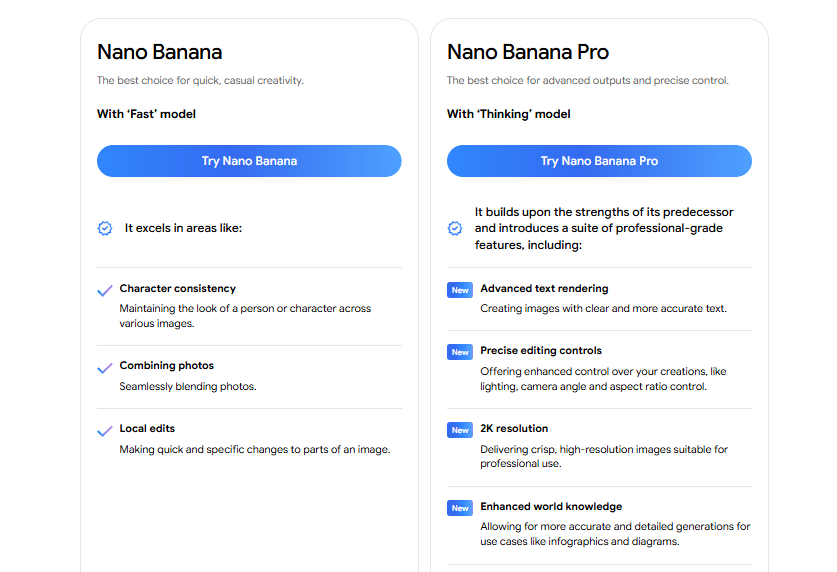
When you generate or edit images in Gemini, you can usually choose between two image models for your Gemini AI photo prompts:
- Nano Banana – the “Fast” model
- Great for quick, casual creativity.
- Optimized for speed and lightweight edits.
- Strong at character consistency, combining photos and local edits.
- Nano Banana Pro – the “Thinking” model
- Built on the Gemini 3 Pro Image model.
- Designed for advanced text rendering, more precise edits, higher resolutions and better world knowledge.
- Ideal for professional design, diagrams, infographics, product shots, and anything where details and accuracy matter.
In this article:
- Any prompt labelled Nano Banana works well with the fast model.
- Nano Banana Pro prompts assume you’re using the “Thinking” model, so you can push quality and control further.
How to Use These Gemini AI Photo Prompts in Nano Banana
- Open Gemini (web or app).
Choose Create image from the tools menu. - Pick the model:
- Fast → Nano Banana
- Thinking → Nano Banana Pro
- Paste one of the prompts below (remove backticks if you copy from a code block).
- Where a prompt says Upload, first add your reference image(s), then run the prompt.
- If the first result isn’t quite right, use the Troubleshooting section further down to iterate instead of starting from scratch.
15 Production-Ready Nano Banana Pro Prompts (For Work & Clients)
These Gemini AI prompts are built for Nano Banana Pro when you need reliability, clean text, and consistent design.
Each prompt below includes:
- Use for – real-world scenario
- Copy-paste prompt – ready to drop into Nano Banana Pro
- Why this works – what it’s doing under the hood
- Failure fix – how to tweak if results go weird
Feel free to modify names, products, dates, etc., to match your project.
1. Product Consistency Carousel (E-commerce)
Use for: Product pages, carousels, Amazon/Shopify listings
Copy-paste Nano Banana Pro prompt:
Upload: One high-quality product photo on a white background.
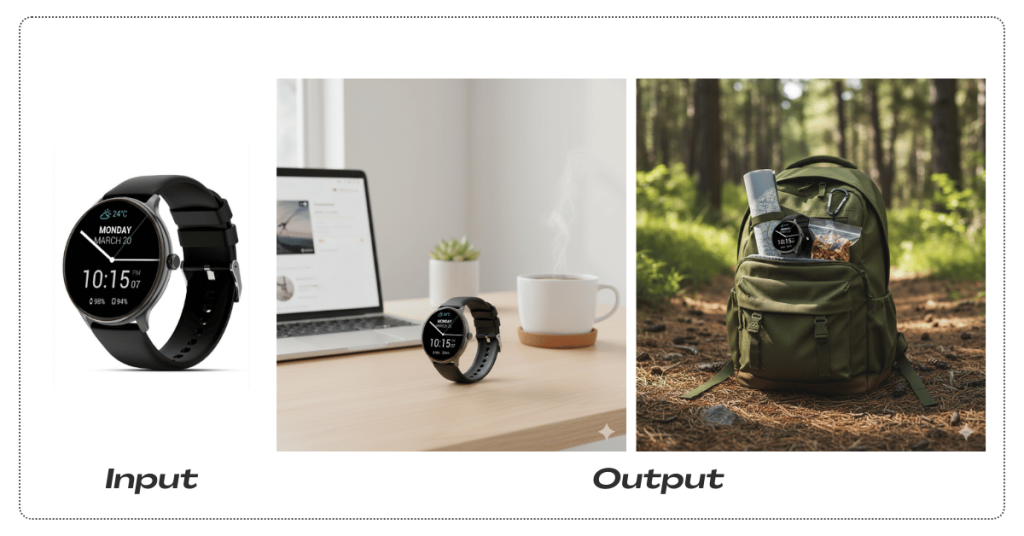
Show this exact product in 4 lifestyle scenes:
1) On a minimalist home office desk with a MacBook and coffee.
2) Inside a gym bag with a towel and water bottle.
3) On a restaurant table with wine glasses and candlelight.
4) In an open backpack on a forest hiking trail.

Keep the product IDENTICAL in every image: same angle, same materials, same reflections, same color, same logo placement. Adjust only the environment, props, and lighting style. Use natural depth of field. Output 4 separate images at 2000×2000, ready for an e-commerce carousel.2. Logo Sketch → 8 Professional Variations
Use for: Branding, logo exploration, pitch decks
Upload: Rough pencil sketch of a logo idea on paper.
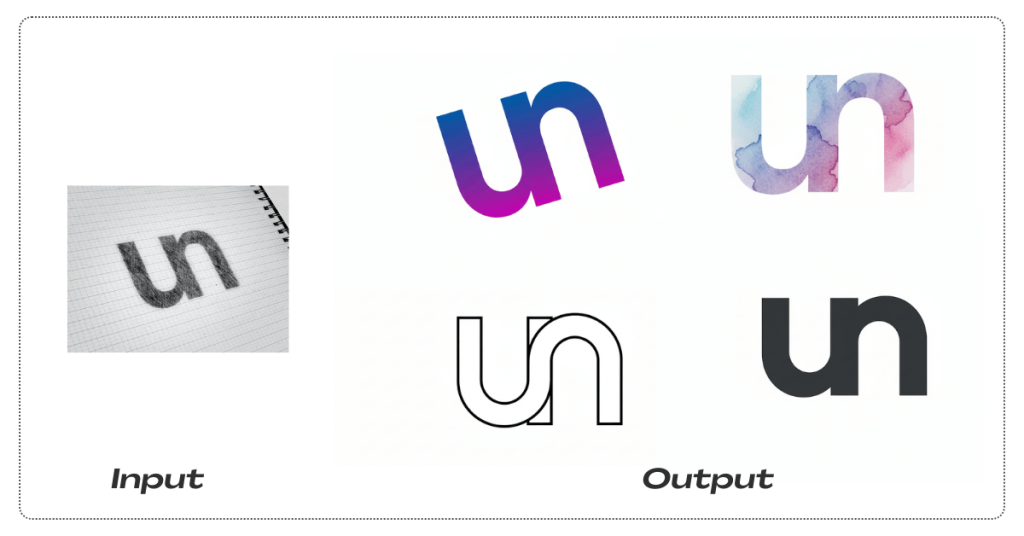
Turn this rough logo sketch into 8 professional logo variations:
1) Minimalist black line art on white.
2) Gradient blue-to-purple modern tech style.
3) Vintage badge with subtle distressed texture.
4) Neon glow logo on a dark background.
5) Watercolor artistic interpretation with soft edges.
6) Bold geometric version with simplified shapes.
7) Gold foil embossed look on dark card stock.
8) Hand-lettered organic style with natural curves.

Keep the core logo concept and symbol recognizable in every variation, but explore clearly different visual directions. Present all 8 versions in a 4×2 grid, each variation clearly separated with a small label beneath it. High resolution, 4K, suitable for client presentations.3. Remote Team → One Group Photo
Use for: About page, LinkedIn banners, internal comms
Upload: 3–5 separate portrait photos of different people from the team.
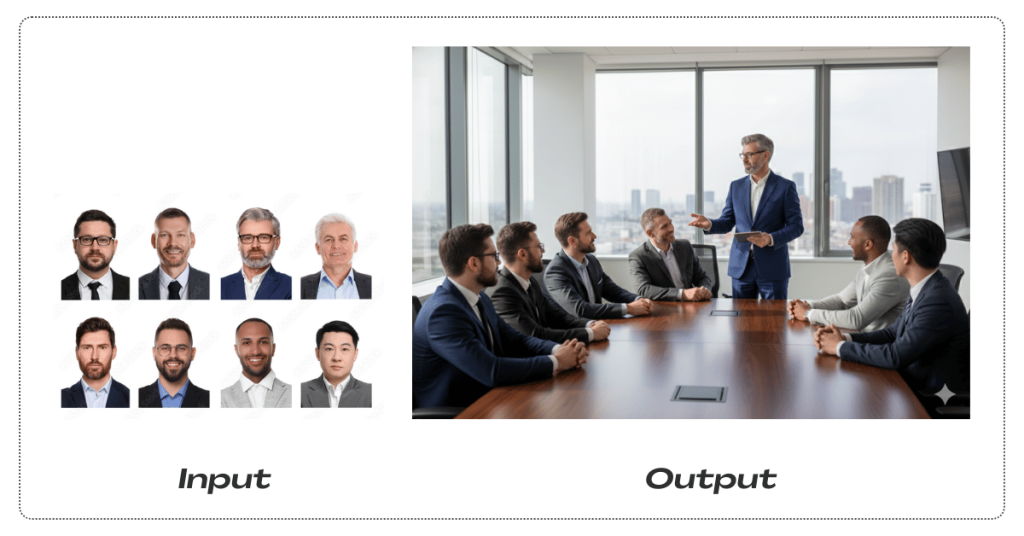
Create a single professional group photo that looks like everyone was physically together.

Scene: Modern office conference room with large windows and a city view. Natural afternoon light entering from the left.

Arrange all people around a conference table in a natural meeting pose: some sitting, one standing and presenting, casual but professional. Match lighting direction and intensity across all faces. Keep each person’s outfit, hairstyle, and appearance exactly as in their reference photo.

Ensure shadows, reflections on the table, and perspective are consistent. The final image should look like a real corporate photo, not a collage. 4K resolution, landscape orientation.4. Localize Product Packaging for 6 Countries
Use for: International launches, packaging mockups, presentations
Upload: Product packaging photo or flat design with English text.
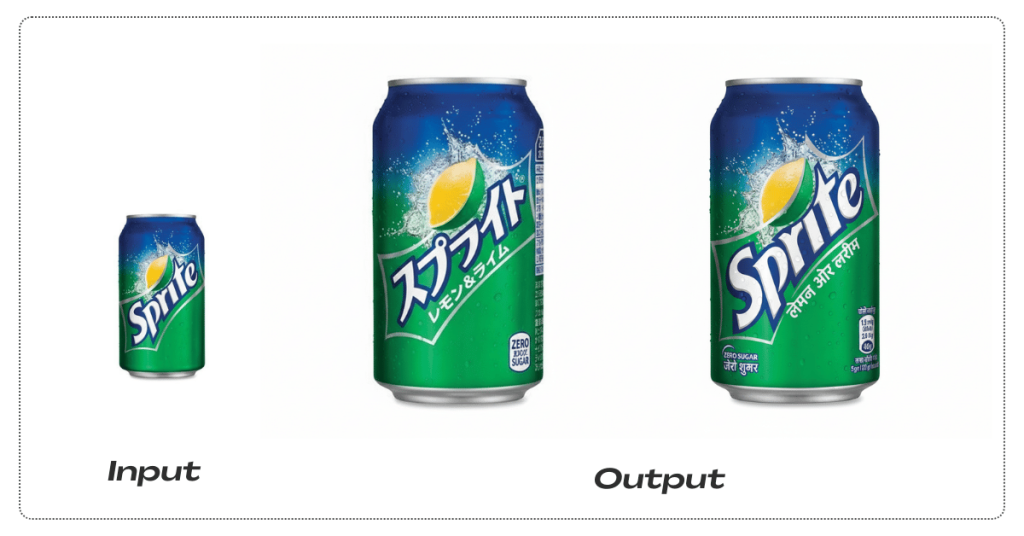
Localize this exact packaging design into 6 language versions:
1) Japanese
2) Arabic
3) Spanish
4) German
5) Simplified Chinese (Mandarin)
6) Hindi (Devanagari script)

Translate ALL visible text into the correct language for each version. Preserve the layout exactly: same logo position, colors, shapes, and imagery. For Japanese, keep vertical text where appropriate. For Arabic, use proper right-to-left layout. Make all text sharp, aligned, and professional, as if originally designed in that language.

Deliver 6 separate images, each clearly showing the localized packaging, at 4K resolution suitable for print mockups.5. Minimal Quote Card Design
Use for: Quote Cards, Posters, Social Posts
Upload: Any author quote with author’s name.
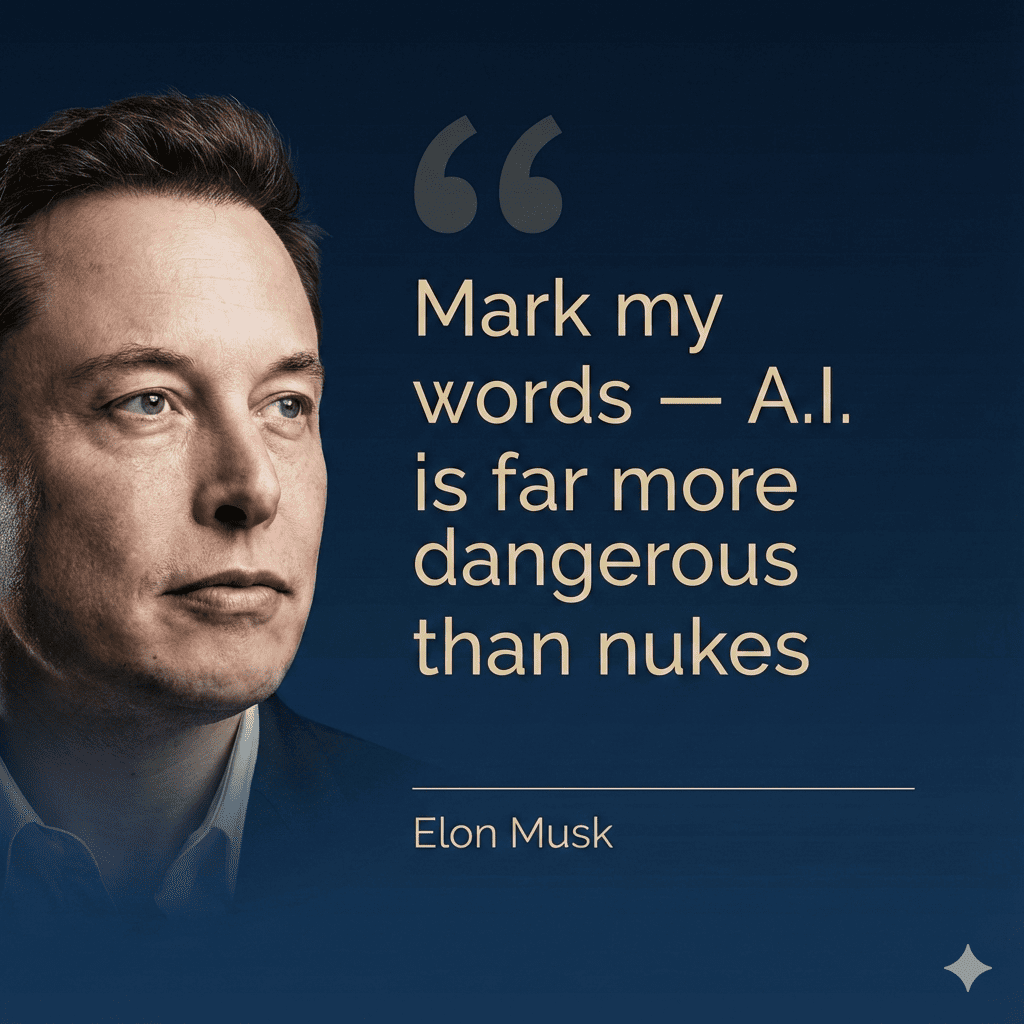
Create a premium editorial quote card (Instagram portrait format) featuring a realistic portrait on the left and the quote on the right. The text area should take about two-thirds of the image and the portrait about one-third, with a smooth gradient transition that blends the portrait edge into the background. Use a deep midnight navy background with a subtle gradient (e.g., #07162A → #0B2340). Set the quote text in soft champagne gold (e.g., #E6D3A6) — not orange, not bronze. Use the same champagne tone (or a slightly lighter off-white) for the thin divider line and the author name. Add a large, subtle opening quotation mark in a very low-opacity champagne tint (10–15%). Important: avoid brown/sepia/tan tones completely. Typography (match premium quote-card design): Use a clean, modern geometric sans-serif for the quote (Helvetica/Neue-style, Gotham-style, or similar), with medium weight for the main quote and lighter weight for the author line. Keep it extremely legible (no decorative serif fonts, no script, no heavy stylization). Use generous line spacing and consistent left alignment. Text (must be EXACT, do not change any words, punctuation, capitalization, or spacing): "Mark my words — A.I. is far more dangerous than nukes" Author line (smaller, exact): “Elon Musk” Layout: Place oversized opening quotation marks near the top-left of the text block. Place the quote beneath it, left-aligned. Near the bottom-left of the text block, add a thin horizontal line and place the author name under it. Keep ample padding around all text. No extra icons, logos, hashtags, or additional text. Output: Create a portrait image at 1080×1080 optimized for Instagram, with crisp, sharp, perfectly readable text and a polished magazine-style finish.Need a quote first? Pick one from our Artificial intelligence (AI) Quotes collection, then paste it into the prompt above to create a ready-to-share quote card.
6. Code → OAuth 2.0 Diagram
Use for: Developer docs, API onboarding, engineering decks
Upload: Screenshot of your code or a rough system sketch for OAuth 2.0.
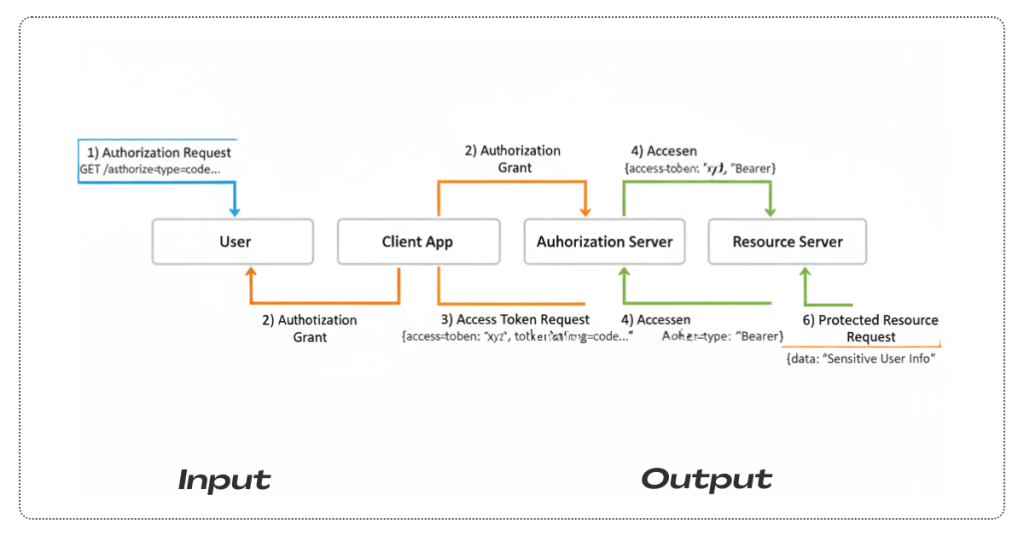
Turn this into a clean OAuth 2.0 flow diagram for technical documentation.

Include these exact components:
- User
- Client App
- Authorization Server
- Resource Server

Use color coding:
- User actions: blue (#2196F3)
- Successful responses: green (#4CAF50)
- Authorization steps: orange (#FF9800)

Add labeled arrows:
1) Authorization Request
2) Authorization Grant
3) Access Token Request
4) Access Token
5) Protected Resource Request
6) Protected Resource

Use a modern, minimalist design with plenty of white space. Include small code snippet callouts in monospace font near key arrows. Export at 2000×2000, optimized for embedding in documentation.7. Real-Time Crypto Dashboard (with Search Grounding)
Use for: Fintech reports, dashboards, slides
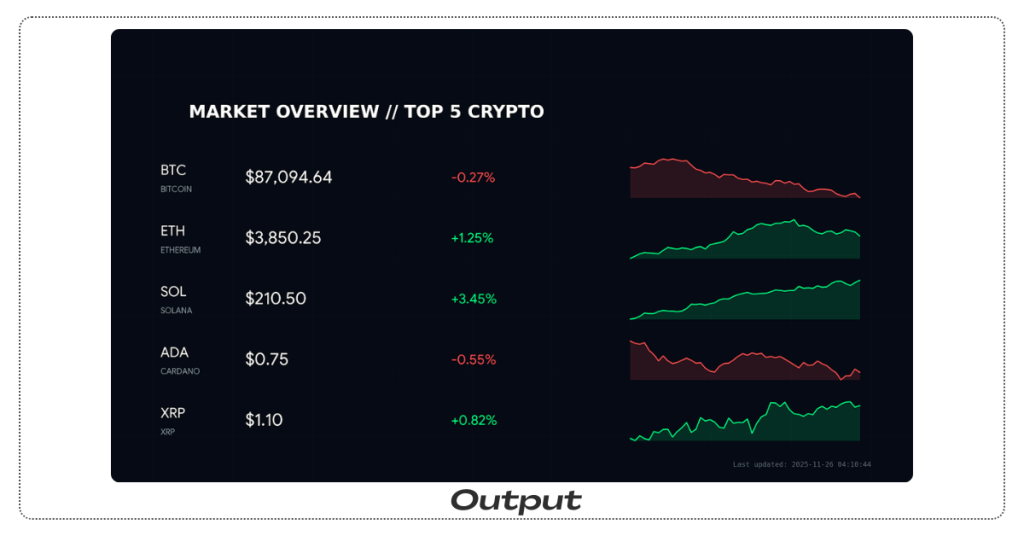
Search the web for today’s top 5 cryptocurrencies by market cap:
Bitcoin, Ethereum, Solana, Cardano, and XRP. Get their current prices and 24-hour percentage changes.

Create a dark-themed financial dashboard inspired by professional trading terminals:
- Deep blue-black background
- Green accents for positive changes
- Red accents for negative changes

For each cryptocurrency, show:
- Name and ticker
- Current price (large text)
- 24-hour percent change
- A small 7-day sparkline chart

Layout everything in a 16:9 dashboard suitable for presentation slides. Add a subtle grid in the background and a small “Last updated: [current date & time]” label at the bottom.
4K resolution.8. Pet → 3D Character Sheet
Use for: Mascots, branding, animation pitches, kids’ books
Upload: 3–4 clear photos of your pet from different angles.
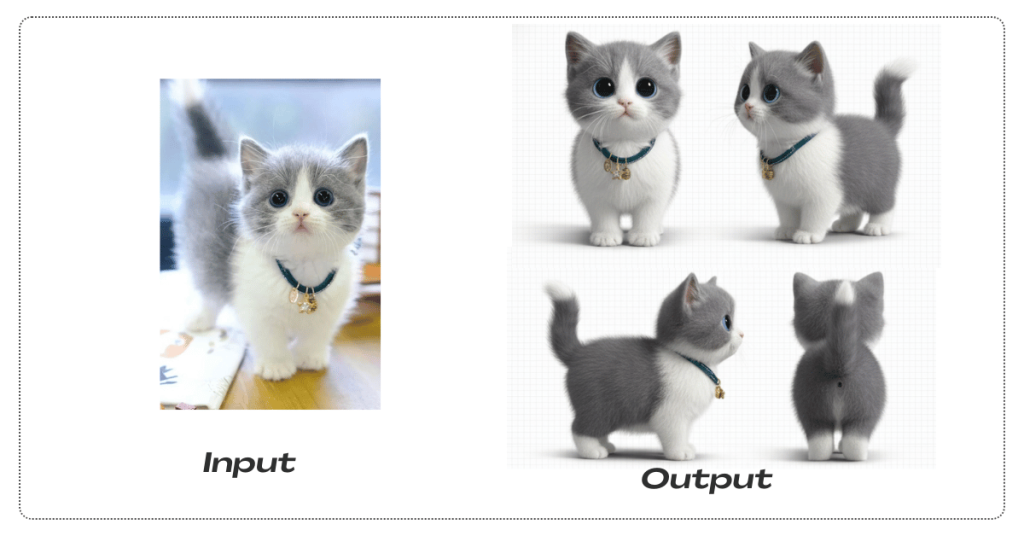
Create a professional character design sheet of this pet as a 3D animated character.

Include:
- Front view
- Side profile
- 3/4 view
- Back view
- Close-up of the face showing expression
- A small walking animation pose lineup

Keep the pet’s exact coloring, markings, and unique features consistent across all angles. Use a Pixar/Disney-style 3D look with clean cel-shading. Include a small color palette with hex codes for the main fur and eye colors.

Use a clean white background with a subtle grid. Add the character’s name at the top. 4K resolution, suitable for a pitch deck.9. Full Restaurant Menu with Perfect Text
Use for: New restaurant concepts, rebrands, print menus
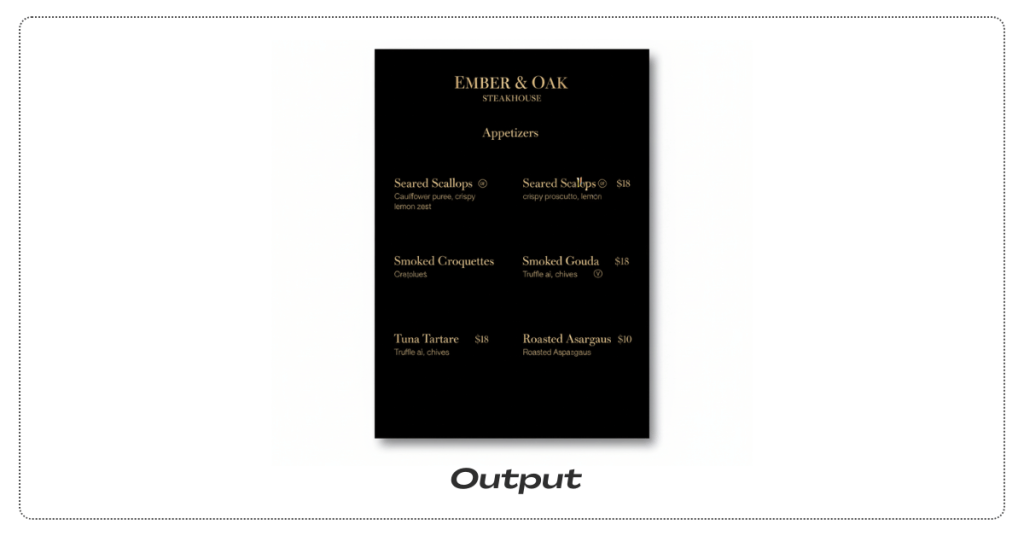
Design a modern steakhouse menu for “Ember & Oak Steakhouse.”
Pages:
1) Appetizers – 6 items
2) Mains – 8 steak cuts with a temperature guide from rare to well done
3) Desserts – 4 items with wine pairing suggestions

Design:
- Black background with gold accents
- Dish names in elegant serif font
- Descriptions in clean sans-serif font
- Prices right-aligned
- Small icons for dietary restrictions (GF, V, VG)

Layout each page to 8.5×11 inches at 300 DPI (print-ready). Make every letter sharp and readable: dish names, descriptions, prices, footnotes, and section titles.10. Cinematic Sci-Fi Still with Camera Controls
Use for: Key art, posters, concept frames
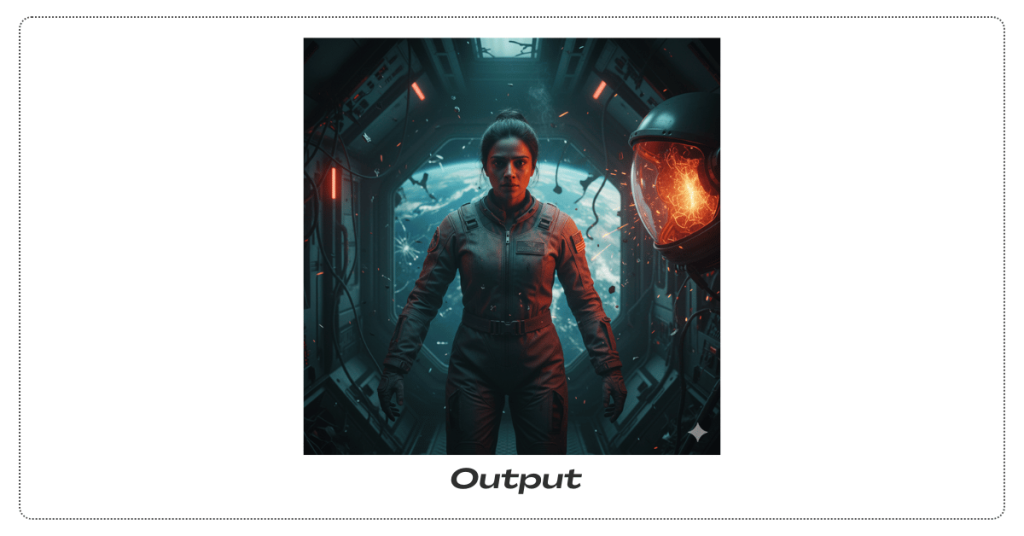
Create a cinematic still from a sci-fi thriller.

Subject:
Indian female astronaut, early 30s, determined expression, hair in a tight bun. She is floating in zero gravity inside a damaged spacecraft corridor.

Camera:
- 35mm lens equivalent
- f/2.8 aperture for shallow depth of field
- Eye-level medium shot (waist up)

Lighting:
- Single harsh key light from a sparking control panel on the right (orange-red glow)
- Soft blue rim light from Earth visible through a cracked viewport behind her
- Dim red practical lights from emergency strips along the corridor

Details:
- Floating debris catching light
- Visible breath condensation in the cold air
- Torn mission patch on her suit shoulder
- Reflection of corridor damage in her helmet visor

Color grade:
Teal and orange, slightly desaturated for tension. 4K resolution, 2.39:1 cinematic aspect ratio.11. Fashion Moodboard → Complete Outfit
Use for: Stylists, brand shoots, personal style planning
Upload:
- 1 image of shoes you like
- 1 image showing preferred pants/jeans style
- 1 jacket reference
- 1–2 accessory/mood images
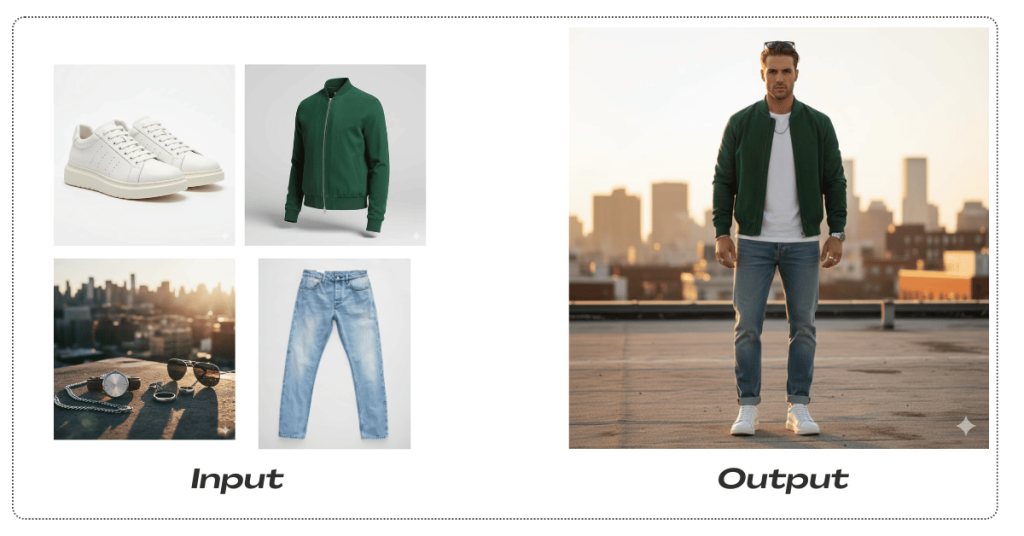
Combine elements from all reference images into one cohesive outfit.

Create a full-body fashion photograph of a male model, 6'2", athletic build, wearing:
- The exact sneakers from the shoe reference
- The fit and wash of the jeans from the pants reference
- The color and cut of the jacket from the jacket reference
- The accessories and overall vibe from the mood images

Scene:
Urban rooftop at golden hour with a soft city skyline in the background, slightly out of focus. Natural warm sunset light as a rim light. Show the outfit from 2 angles: front view and 3/4 view. Output 2 separate 2K images, editorial quality.12. Historical Recreation by Coordinates
Use for: History blogs, textbooks, documentaries
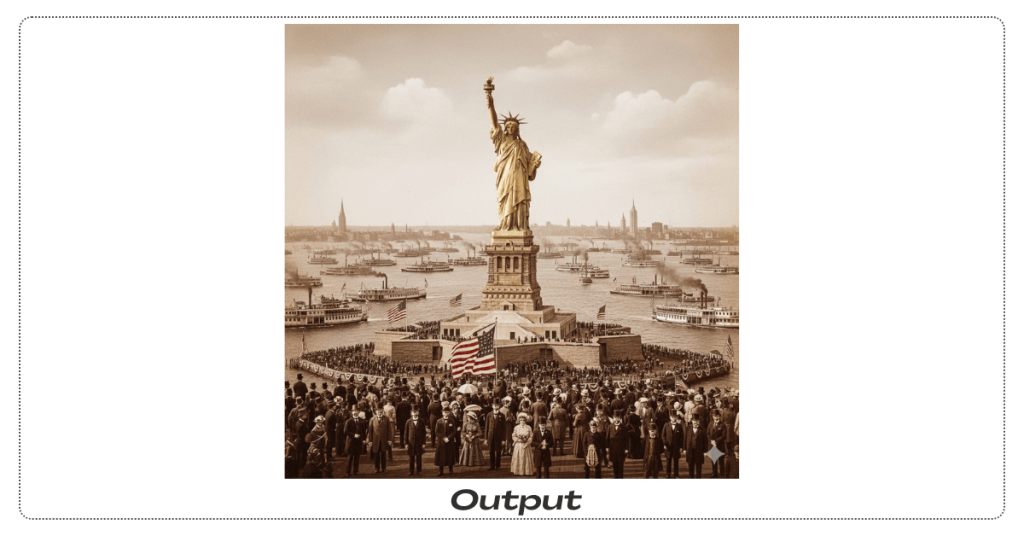
Generate a historically accurate scene at coordinates 40.6892° N, 74.0445° W (Statue of Liberty, New York Harbor) on October 28, 1886, at 14:30 (2:30 PM), during the dedication ceremony.

Show:
- Crowds on boats in the harbor
- American flags and banners
- Statue of Liberty newly unveiled, bright copper surface (not yet green)
- Spectators in authentic 1880s clothing
- A mix of sailing ships and early steamboats
- Period-accurate New York shoreline architecture

Atmosphere:
Formal but celebratory public event. Autumn afternoon lighting from the southwest. Style: restored historical photograph with slight sepia tone and fine grain. 2000×2000 resolution suitable for print.13. Product Photography Consistency Test
Use for: E-commerce branding systems, catalog shoots
Upload: A high-quality photo of your product (e.g., smartwatch).
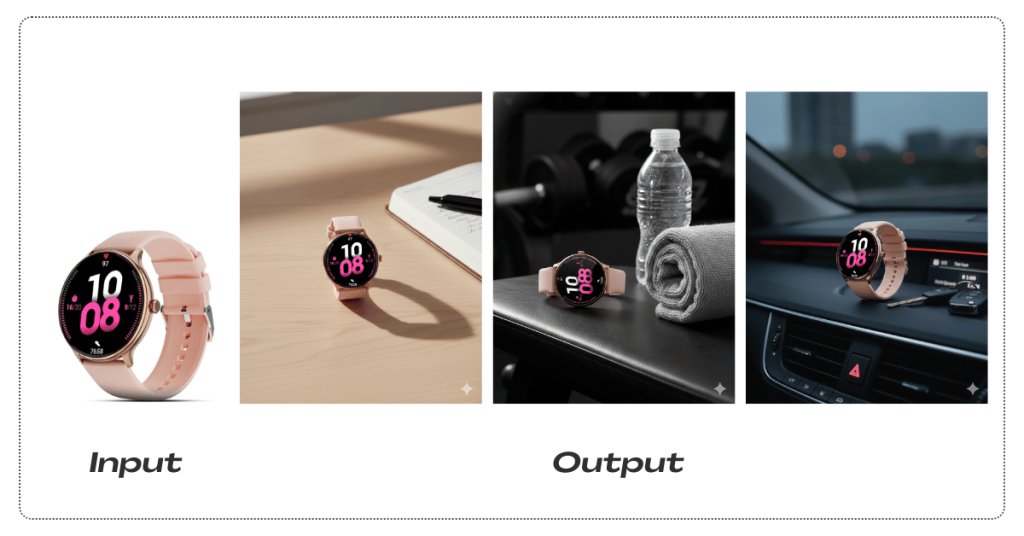
Create 6 professional product photos of this exact smartwatch, keeping its design, color, screen content, and any wear patterns completely consistent.

Scenes:
1) Clean white background, front-facing e-commerce shot with soft front lighting.
2) Wooden desk with a journal and pen, daylight from a window on the left.
3) Gym bench with towel and water bottle, dramatic side lighting.
4) Car dashboard next to car keys, dashboard lights glowing softly.
5) Outdoor granite rock with hiking boots in the background, overcast daylight.
6) Dinner table with wine glass and menu, warm candlelight ambiance.

In every scene, adjust only the environment and lighting style. The smartwatch must look identical in shape, color, reflections, and screen display. 4K resolution, square 1:1 aspect ratio suitable for Instagram carousels.14. Planet Sizes → Classroom Infographic
Use for: Teachers, science explainer posts, education startups
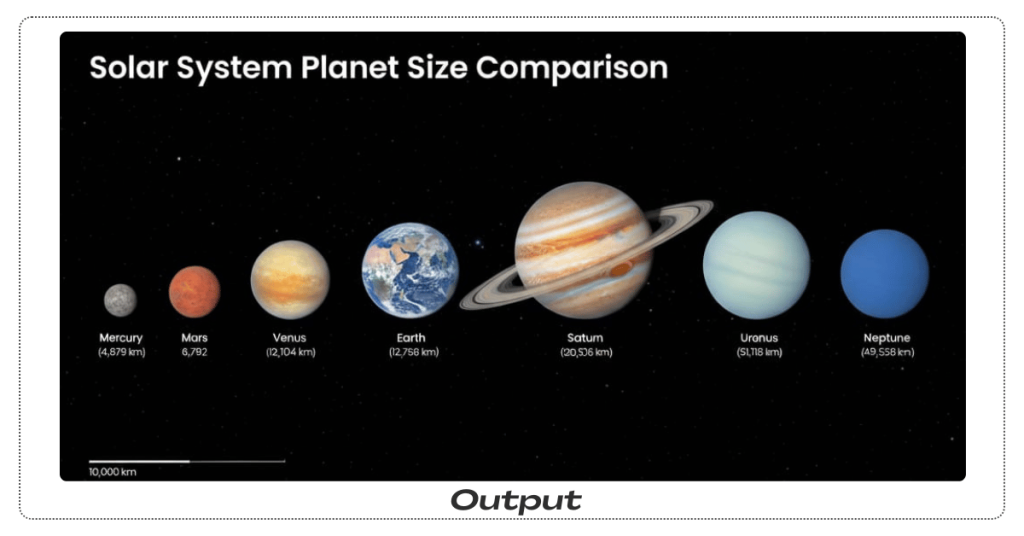
Create an educational infographic comparing the diameters of the 8 planets in our solar system using these values (in km):

Mercury 4,879
Venus 12,104
Earth 12,756
Mars 6,792
Jupiter 142,984
Saturn 120,536
Uranus 51,118
Neptune 49,528

Show all 8 planets to scale relative to each other, arranged horizontally in order from the Sun. Use scientifically accurate colors and textures for each planet.

Label each planet with its name and exact diameter in a clean sans-serif font. Add a scale bar labeled “10,000 km” for reference and a title at the top: “Solar System Planet Size Comparison”.

Background: deep space black with subtle stars. Poster size: 24×36 inches, 300 DPI, suitable for classroom printing.15. Mood Board → Coffee Shop Interior
Use for: Interior designers, café owners, client pitches
Upload: 8–10 reference images showing colors, textures, lighting, furniture, plants, and art styles you like.
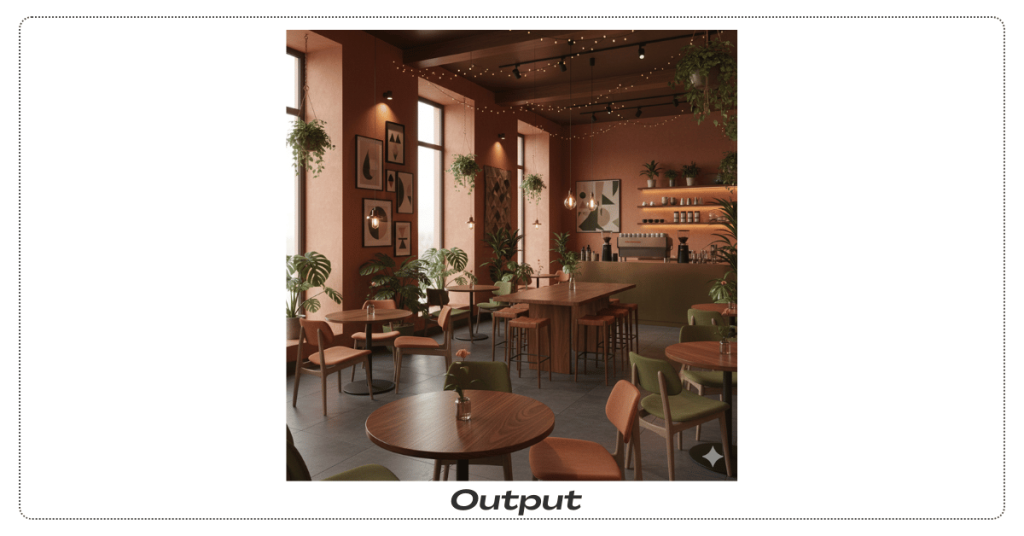
Synthesize all these references into a single cohesive interior design for a coffee shop.

Combine:
- The color palette from image 1 (warm terracottas and deep greens).
- The wood texture and grain from image 2.
- The soft, intimate lighting mood from image 3.
- The furniture style from image 4 (mid-century modern).
- The plant placement approach from image 5.
- The wall art aesthetic from images 6 and 7.
- The overall cozy, sophisticated vibe from images 8–10.

Scene:
Main seating area with 4 small tables, one long community table, an espresso bar in the background, and large windows with natural light. Add plants throughout. View from a corner with a wide angle, showing most of the space. Photorealistic architectural visualization, 4K resolution, presentation-ready.How to Write Nano Banana Pro Prompts That Actually Work
After a lot of testing, here’s what consistently helps Gemini AI photo prompts perform better:
1. Be painfully specific about what matters
Bad:
“Make the lighting nice.”
Better:
“5600K daylight, key light from upper left at a 45° angle, soft fill at 30% intensity from the right.”
Nano Banana Pro understands technical language. Use it.
2. Brief it like a professional
A reliable structure for any Gemini AI prompt:
- Subject – What are we looking at?
- Environment – Where is it? Time of day? Mood?
- Technical details – Camera, resolution, aspect ratio, colors
- Constraints – What must stay the same (face, product, text, layout)?
- Output – How many images, for which use?
When you structure prompts like this, you’re basically writing a mini creative brief.
3. Use “Search the web” for live or factual data
Whenever you need current prices, weather, events, or stats, make sure you say something like:
“Search the web for [X], then…”
That encourages Pro to ground the image in reality instead of guessing.
4. Upload reference images with intent
Rough guideline:
- 1–3 images: style or object transfer
- 4–7 images: complex scenes & compositions
- 8–14 images: consistency across a series or full mood boards
More images isn’t always better. Pick references that show exactly what you want: lighting, materials, angles, etc.
5. Always specify resolution & aspect ratio
If you don’t, you’ll usually get a generic ~1K square that’s fine for tests but useless for:
- Print (menus, posters, packaging)
- Slides & key art
- High-end web design
Examples that work well:
- “4K, 16:9, presentation slide”
- “300 DPI, 24×36 inch poster”
- “Square 1:1, 2000×2000 for Instagram”
6. Be very specific about text
Text is one of Nano Banana Pro’s biggest strengths – but only if you tell it what you care about:
- Fonts & hierarchy: “Bold sans serif headline 2× body size, centered top third.”
- Language: “All text in Japanese with proper kanji and kana.”
- Placement: “No text crossing faces or important objects.”
Common Nano Banana Pro Mistakes (and Fixes)
Here’s where people usually go wrong and how to fix it in your prompts:
- Plastic, waxy skin
- Fix: “Natural skin texture, subtle pores, no beauty filter, no plastic skin.”
- Broken or fuzzy text
- Fix: “All text must be sharp and readable at 100% zoom, as if designed in professional layout software.”
- Impossible lighting or physics
- Fix: Give clear direction: where is the light, how many sources, what intensity?
- “Realistic lighting consistent with a single sun/window source; no floating light sources.”
- Contradictory instructions
- “Minimal but super detailed” is confusing. Instead:
- “Minimal composition with a single subject, but high detail in that subject’s texture.”
- Inconsistent characters/products across images
- Fix: “Keep the same face/product in every image; do not change facial features, logo placement, or proportions.”
- Forgetting the use case
- Always end with: “This is for [print / social / hero banner / deck], so prioritize [text clarity / dramatic composition / product visibility].”
When to Use Nano Banana vs Nano Banana Pro in Gemini
Use Fast (regular Nano Banana) when:
- You’re just brainstorming or moodboarding
- You’re making quick memes / social posts
- You care more about speed than pixel-perfect results
- You want to save Pro credits
Use Pro (Nano Banana Pro) when:
- You have clients or stakeholders
- You need 4K or print-ready assets
- There’s important text involved
- You need multi-image consistency (faces, products, styles)
- Technical accuracy matters (diagrams, data viz, UI, dashboards)
Planning to build an app/product with an image model API?
Whether you use Nano Banana Pro or another image model, production apps need GPU compute, scalable storage, and the ability to autoscale.
- Run workers on on-demand Cloud GPUs
- Store inputs/outputs in Cloud Storage
- Scale on Kubernetes when traffic spikes
Nano Banana is no longer limited to Gemini alone. A growing number of online creative tools now use it inside broader image-and-video workflows, which is useful for people who want results without building their own stack. For example, Invideo says its platform includes access to 200+ models, including Nano Banana Pro for AI image generation alongside video models such as Google Veo 3.1 and Sora 2, letting users move from prompt to image to finished video in one workspace. On Google’s own side, Flow has also been part of the Nano Banana ecosystem, and Google says Nano Banana 2 is now the default image generation model in Flow, showing how these models are increasingly becoming part of full creative platforms rather than just standalone image tools.
Talk to our cloud experts to design the right infrastructure and start building faster.
Custom JS for this blog functionality
Microsoft Clarity code & free credits section
credits section
🎁 Claim Free CreditsDisabling forms on this page
Frequently Asked Questions:
A good prompt clearly defines: subject, environment, technical requirements (resolution, aspect ratio, lighting, camera), constraints (what can’t change), and final use case. The more these match real design briefs, the better Pro performs.
No. But they help a lot for style and consistency. Use references when you care about exact products, faces, spaces, or art styles.
Check the latest Gemini / Google AI terms for your account and region. In general, many tiers allow commercial use, but licensing can change over time.
If you hit certain usage limits, the system may fall back to the fast model. Also make sure you’ve actually selected the Thinking / Pro model in your interface.
Yes, you can freely reuse and adapt these text prompts. Image generation itself depends on your Gemini plan, limits, and region, so always check Google’s latest terms for commercial use and quotas.
Yes. Nano Banana Pro is the advanced version of Google’s Gemini AI photo generator. All prompts in this guide work with both.
In the Gemini app, select “Create image” then choose “Fast” (standard Gemini AI photo model) or “Thinking” (Nano Banana Pro).